ioki Route User Manual
Overview
Import
Stations & Stop Points
Lines & Routes
Route Segments
Warnings
Connect Device
ioki Route App
Live Map & Vehicles
Timetable
Release Notes
Timetable
Instructions for creating and editing time profiles and timetables
Creating Time Profiles
- To generate trips in the timetable, routes must first be assigned and filled with time profiles.
- To create a new time profile, click on “+ Add Profile” in the route view.
- A waiting time in minutes and seconds can be assigned for each stop.
- A travel time in minutes and seconds can be defined for each segment between two stops.
- Empty minute and second fields are treated as 0 min and 0 sec.
- Time profiles can be deleted or duplicated using the respective icons.
Creating Timetables
- To generate trips in the timetable, click the “Schedule” button in the line view.
- In the calendar view, click the “+” symbol under the desired day.
- In the modal that opens, you can assign a trip number, select the route and corresponding time profile, and define the desired start time of the trip.
- By clicking “New Schedule”, the trip will be created under the selected day and will immediately be available for drivers in the app.
- Daily schedules or entire weeks can be deleted or duplicated using the respective icons.
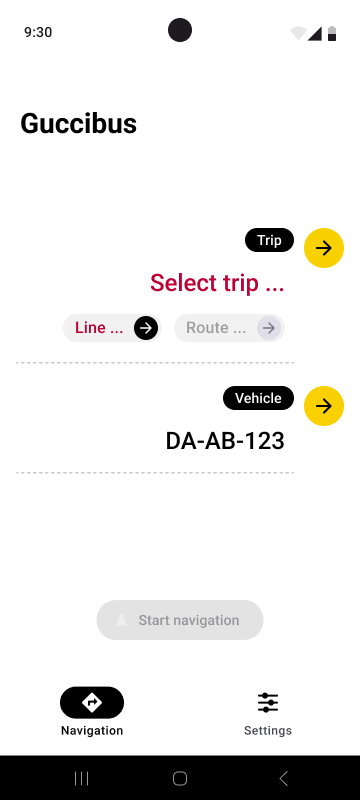
Selecting a Trip in the App
- To select a trip as a driver, a corresponding selection field is available in the app.
- The listed trip numbers are sorted by departure time and can be further filtered by selecting the line and route.
- For navigation without timetable data, only the line and route can be selected, and navigation can be started by clicking “Start Navigation.”